
To enable app Selly tiles on POS at the first time, please follow the steps below:
Step 1. Open POS smart grid editor in Shopify admin > Point of Sale > Settings > POS app:
https://admin.shopify.com/apps/point-of-sale-channel/editor?currentEditor=pointOfSale&mode=sections
* If the link above does not work, please check your Customize smart grid permission. Learn more about staff permissions: https://help.shopify.com/en/manual/your-account/users/roles
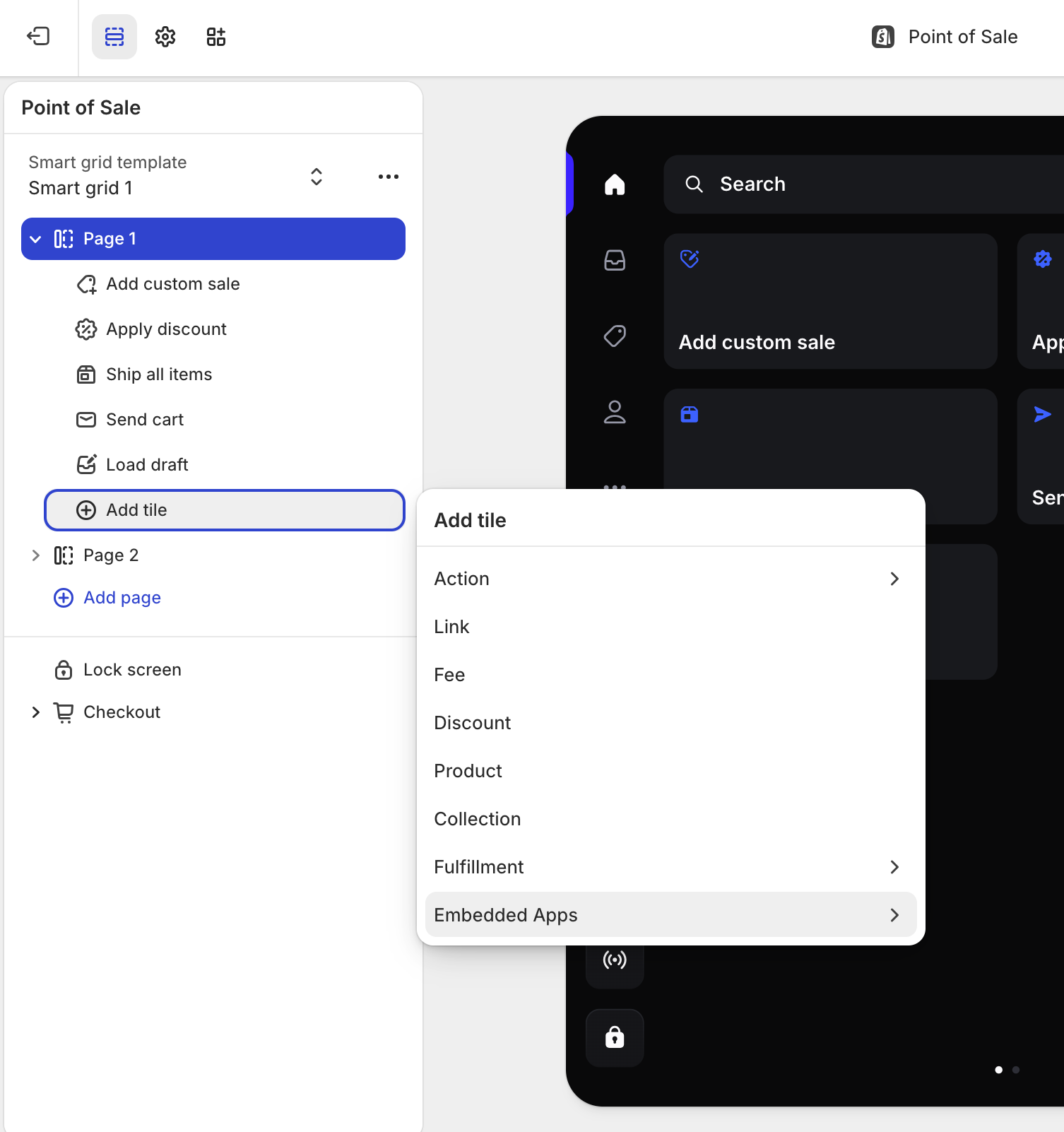
Step 2. On Page 1, click "Add tile", then select "Embedded apps",
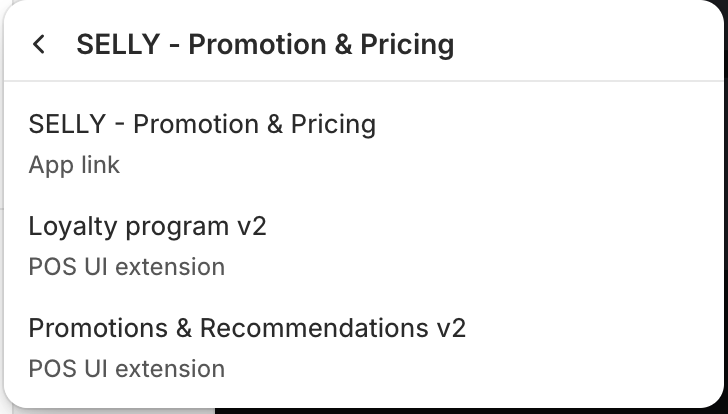
then select "SELLY Promotion & Pricing":
Then click to add "Promotions & Recommendations v2" for sale, upSale, bundle, wholesale, recommendation, motivator offers
or click to add "Loyalty program v2" for loyalty program:
Step 3. The steps above are to enable app tile on the default smart grid template.
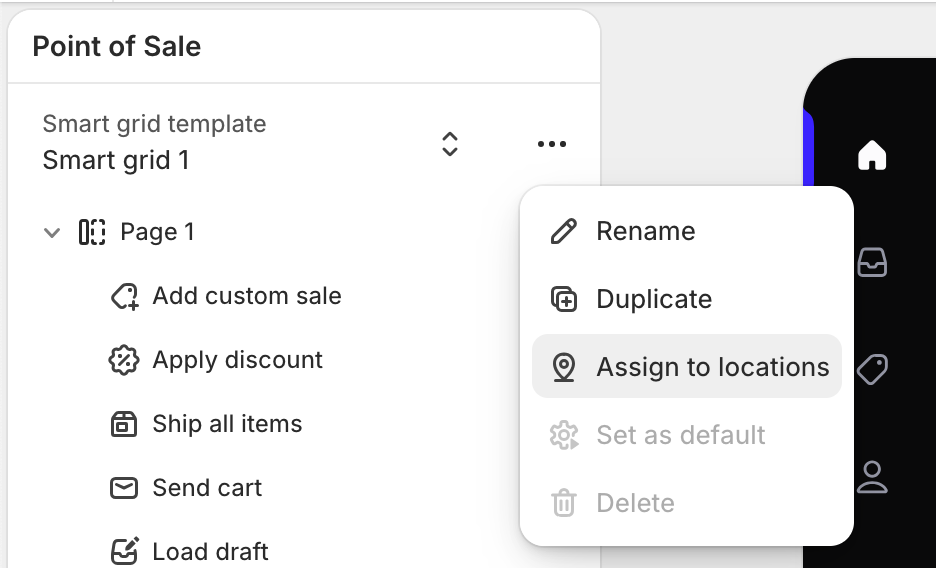
You can assign the smart grid template to other locations:
In the Smart grid section, click the three dots . . . , click "Assign to locations"
Step 4. Click Save at the top right corner of the editor.
Step 5. On POS app, check if app tiles enabled like below:
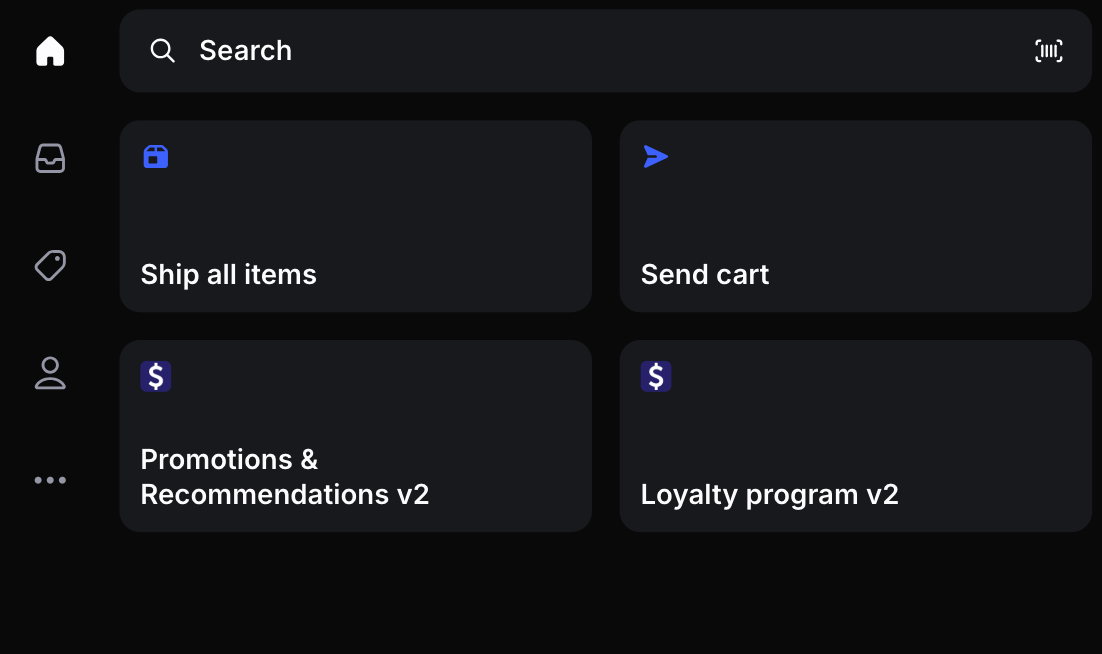
* If the app tiles are not shown, please try to reload POS app.
Step 6. Add some trigger products to cart to check.
Discounts are applied automatically based on offer settings or you can click a Selly tile to view product recommendations or loyalty rewards if available.
